Easy POS Docs - Installing as a PWA
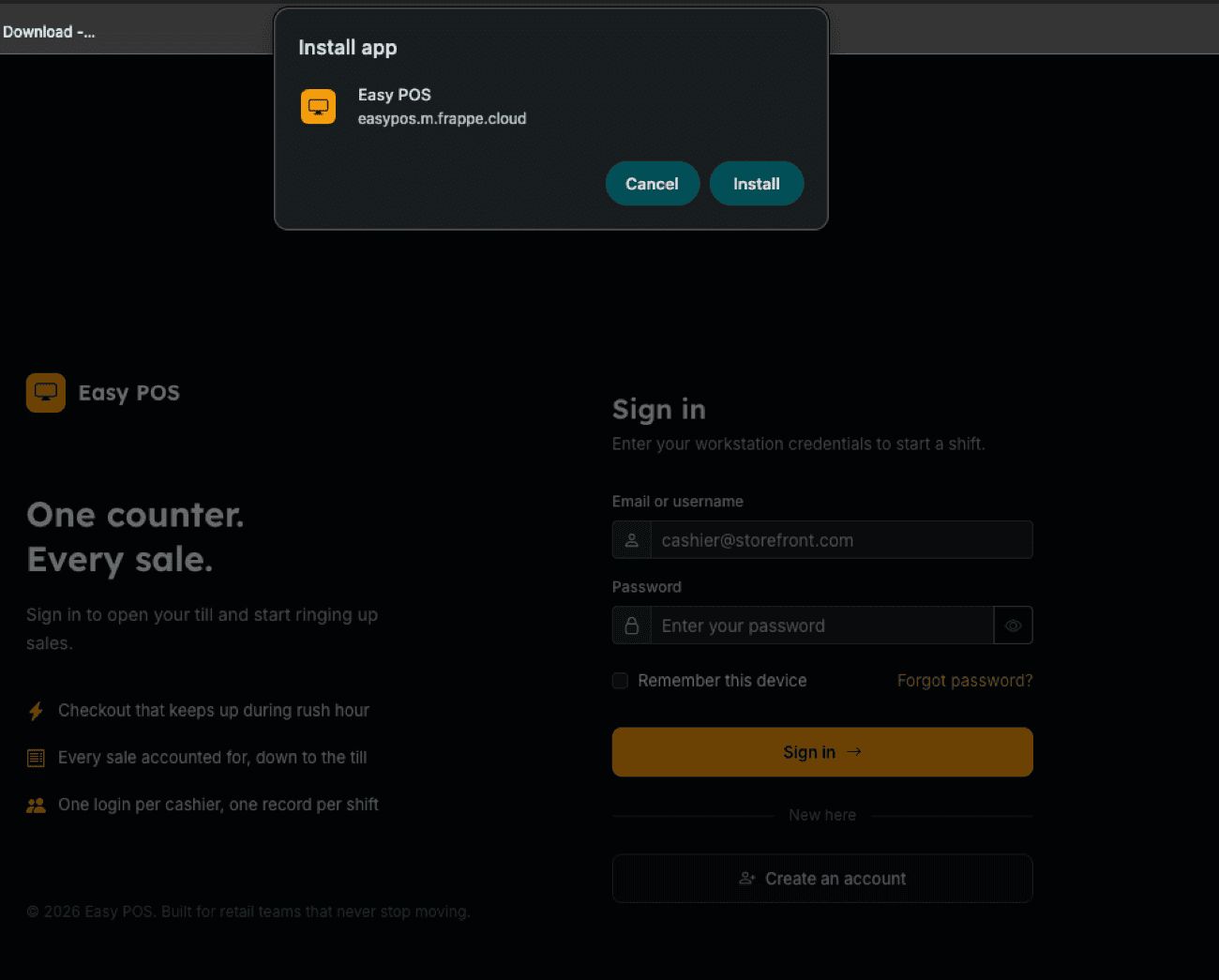
Installing Easy POS as an App (PWA)
Easy POS is an installable Progressive Web App — you can put it on a till, tablet, or desktop like a native app, complete with a standalone window, a home-screen/app-list icon, and a custom splash screen.
Desktop (Chrome / Edge)
- Open
/posappin the browser. - Click the install icon in the address bar (or the browser menu → Install Easy POS).
- The app opens in its own window from then on, separate from your regular browser tabs.
Mobile / tablet (Android Chrome, iOS Safari)
- Open
/posappin the browser. - Use the browser's Add to Home Screen option.
- Launch it from the home screen icon like any other app.
What gets cached
The app shell (JS, CSS, icons) is precached by a service worker for instant repeat loads, with a prompt-to-reload banner whenever a new version is deployed — you're never silently reloaded mid-transaction.
Transactional data and API calls are always fetched live (cookie-based auth, shared-terminal safe) — this covers installability and fast reloads only, not full offline operation. See Offline & Sync (Preview) for what's planned there.